How to Shift IT Equipment Safely: A Complete, Stress-Free Guide
Relocating your office or home workspace is exciting, but let’s be honest—the moment you start unplugging that tangle of cables behind your desk, a familiar wave of dread hits. How many of those wires actually matter? Will your monitors survive the bumps in the moving truck? And, most importantly, will your precious desktop boot back up on the other side?
IT equipment is delicate, expensive, and holds the literal lifeblood of your day-to-day operations. Whether you are moving a bustling startup to a brand-new office or simply shifting your personal workstation across town, safety is everything.
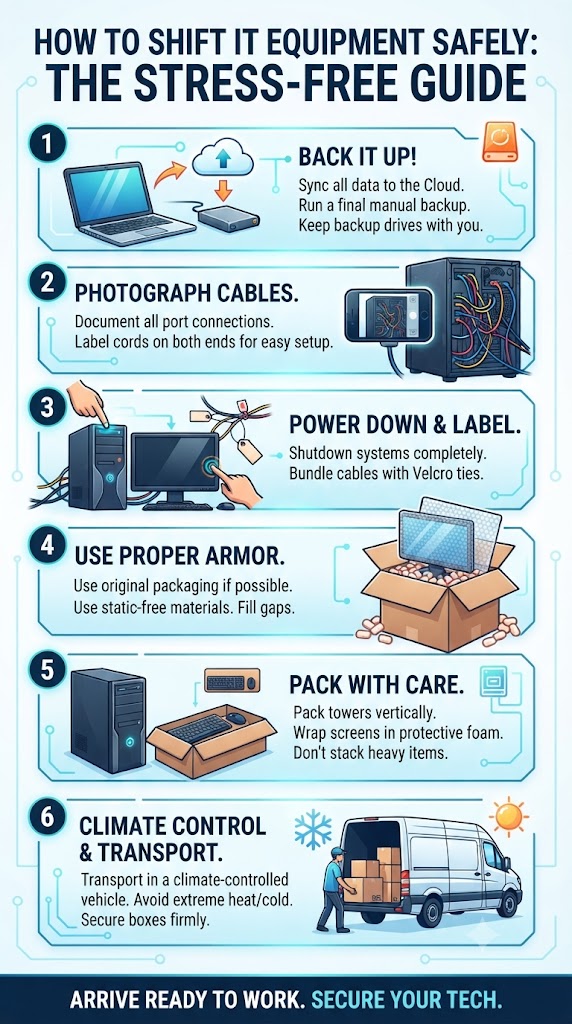
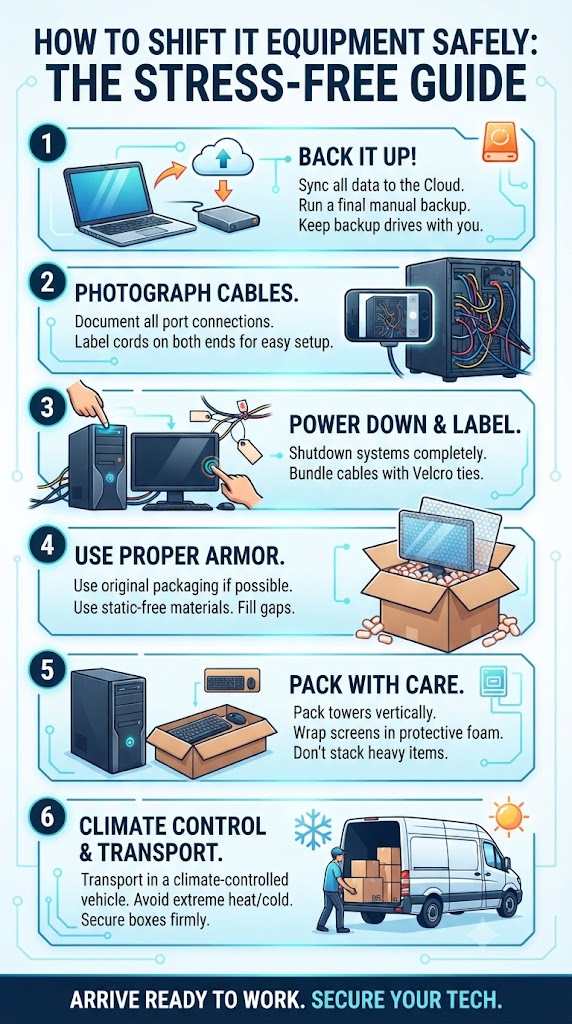
Step 1: Back Everything Up (Before You Touch a Cable) Before you even think about bubble wrap, protect your digital assets. Hardware can be replaced, but lost data is gone forever.
Go Cloud-First: Ensure all your crucial documents, databases, and project files are synced to cloud storage or an external drive.
Double-Check Backups: Run one final manual backup of your local drives the day before the move.
Pro Tip: Keep your portable backup drives with you in your personal bag during the move, rather than packing them in the back of a moving truck.
Step 2: The Golden Rule—Photograph Everything We’ve all been there: you unplug a monitor, a router, and a printer, and twenty minutes later, you’re staring at a mess of ports wondering what goes where.
Whip out your phone and snap clear pictures of the cable connections on the back of your PCs, routers, and docking stations.
Future-you will thank past-you when it’s time to set everything back up in record time.
Step 3: Power Down and Label Like a Pro Shut down all operating systems properly—never just pull the plug on a running tower or server. Once everything is powered off and cool to the touch, it’s time for labeling.
Use color-coded masking tape or printed labels. Assign one color or number per workstation.
Label both ends of every cable (e.g., "Monitor Power," "HDMI 1," "Keyboard") so you aren't playing guessing games later.
Bundle loose cords with Velcro ties or rubber bands and place them in labeled Ziploc bags taped directly to the corresponding device.
Step 4: Choose the Right Armor (Packing Materials) Standard cardboard boxes and old newspapers won't cut it for sensitive electronics. Static electricity and shock are your equipment's worst enemies.
Original Boxes: If you saved the original packaging for your monitors, servers, or PC towers, now is their time to shine. They were literally engineered for this journey.
Heavy-Duty Double-Walled Boxes: For items without original boxes, invest in sturdy, appropriately sized boxes.
Anti-Static Bubble Wrap: Wrap sensitive components in anti-static wrap rather than standard bubble wrap to prevent electrostatic discharge.
Cushioning: Use packing peanuts, foam inserts, or crumpled packing paper to fill any empty gaps so items cannot shift around during transit.
Step 5: Pack Specific Gear the Right Way Desktop Towers: If possible, remove heavy internal components like dedicated graphics cards or large CPU coolers if you're traveling long distances over bumpy roads, as they can snap motherboard slots. Pack the tower vertically, never flat.
Monitors: Screens are exceptionally fragile. Wrap them in protective foam or anti-static bubble wrap, pack them vertically between soft layers, and never stack heavy items on top of them.
Peripherals: Keyboards, mice, and power bricks can be bundled together in standard boxes, just make sure they are well-padded.
Step 6: Climate Control and Transport Electronics hate extreme temperatures and humidity.
Transport your IT equipment in a climate-controlled vehicle (like your car or a professional moving van with temperature management) whenever possible.
Never leave sensitive tech sitting in direct sunlight inside a hot vehicle for hours.
Load boxes securely so they won't slide, tip over, or get crushed by heavier furniture pieces.
Unpacking and Setting Up When you arrive at your new destination, resist the urge to plug everything in immediately—especially if the equipment was exposed to cold weather or humidity during transit. Let the gear sit at room temperature for an hour to prevent internal condensation from shorting out your circuits.
Refer back to your setup photos, plug everything in step-by-step, and power on. Take a deep breath, grab a cup of coffee, and enjoy your fresh, up-and-running workspace!
MoveABox Team
Expert team at MoveABox dedicated to making your relocation experience smooth and stress-free. We share professional insights, tips, and best practices from years of moving expertise.